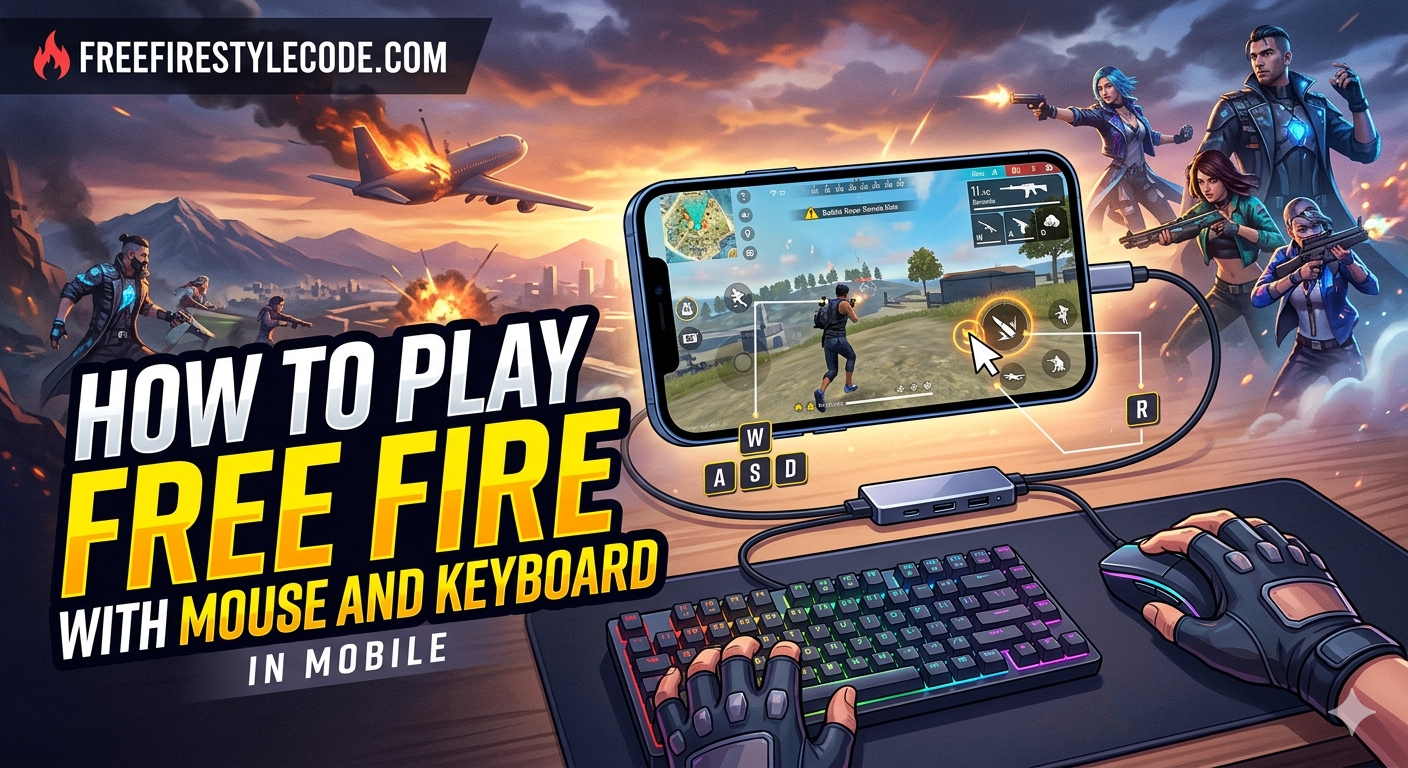
Mobile gaming has evolved a lot in the last few years, especially games like battle royale required specically high end devices in the past, but thankfully, Garena, on December 8, 2017, came up with their game named Free Fire and made it possible for many players with even low-end devices to enjoy games like battle royale smoothly.
But sometimes touch screen controls start bothering you, especially during an intense fight where you need to respond quickly, but the screen response feels unsatisfactory.
That is why a lot of players nowadays are shifting towards using a mouse and keyboard, connecting to their smartphone externally to enjoy a better gameplay experience with improved accuracy & control. It almost makes them feel like playing on a PC.
In this guide, we will show you different ways to use a keyboard and mouse in Free Fire on your phone and also enlighten you on how to set everything up for the best performance.
Apart From this, You Can Also Read Secret Free Fire Sensitivity Settings
Can You Play Free Fire With Mouse And Keyboard on Mobile?
The short and true answer is: yes, we can, but not directly in all cases.
Most smartphones don’t support mouse and keyboard input natively because Garena Free Fire is primarily made for touchscreen controls. But don’t you worry, there are other ways to use these external devices and still enjoy the game with better controls.
This works in two main ways:
Direct connection: You can connect a mouse and keyboard directly to some Android devices using OTG or Bluetooth, but you will be left with limited support. With this type of connection, basic navigation might work, but you would often need to change the controls in the game.
Indirect setup: This is done using key-mapping apps, which are the most effective because it converts keyboard and mouse inputs into touch controls. This method gives you a more complete and playable experience.
Read More: Top 10 Best Guns In Free Fire For Maximum Damage
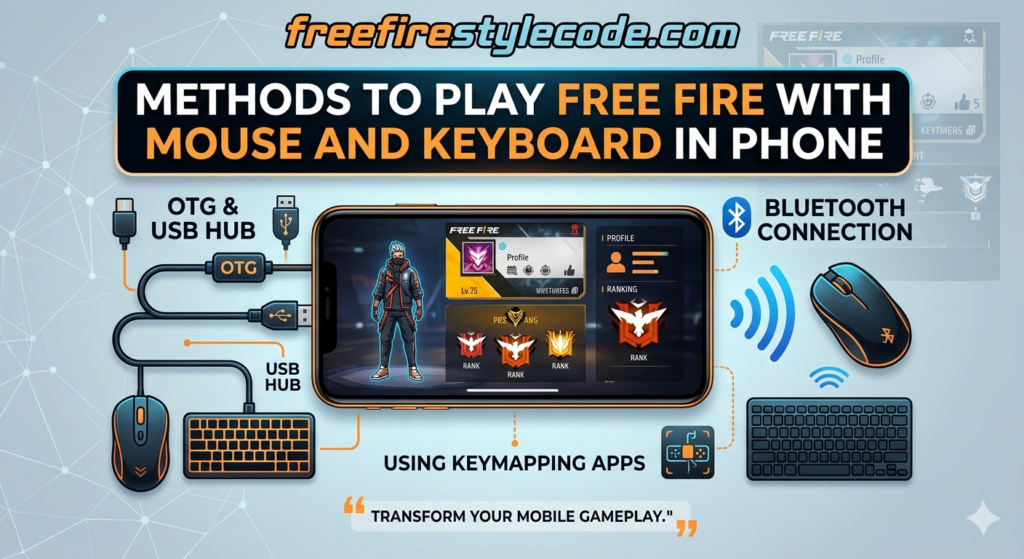
Methods to Play Free Fire With Mouse and Keyboard
You can choose one of the few available methods mentioned below to play Free Fire with a mouse and keyboard on your mobile phone. It also depends on your device’s performance.
1. Using OTG Cable
This is one of the most affordable and simple methods; you can directly connect your mouse and keyboard to your smartphone with the help of an OTG cable, which provides you with a stable connection with no battery issues and less input lag, while you may notice some limitations in game support due to no proper key mapping.
Here is how it works:
- Firstly, you need to plug the OTG cable into your phone
- Then simply connect your mouse and keyboard to your phone via USB cable
- And your phone will detect the external devices automatically, just make sure your phone is OTG compatible.
2. Using Bluetooth Mouse and Keyboard
This is one of the easiest to connect and a portable setup, which requires no wired connection, best suited for players who prefer wireless connectivity. But it may show some input delay depending on the device and may require charging as well as key mapping for better gameplay.
Here is how it works:
- Firstly, you need to turn on Bluetooth on your phone
- Then pair your mouse and keyboard
- Once connected successfully, you can start using them instantly
3. Using Key Mapping Apps & Tools
This is the most Effective method if you want full control while playing. These key mapping apps convert your keyboard and mouse inputs into touchscreen actions with full control customization, which makes them work smoothly in Free Fire, thus gives yoy best gaming experience.
Here is how it works:
- Firstly, you need to install a key mapping app and connect the phone and the external devices to a Receiver or Hub powered by a USB cable.
- Then assign keys to different on-screen controls like move, shoot, and jump
- Lastly, customize the layout for your comfort, and you are ready to go
Read More: How To Increase Honor Score In Free Fire
Step-by-Step Guide to Setup
Now that you know all the methods, let’s see how to set everything up properly so that you can play Free Fire with a mouse and keyboard on mobile without any confusion.
Step 1: Connect Your Mouse and Keyboard
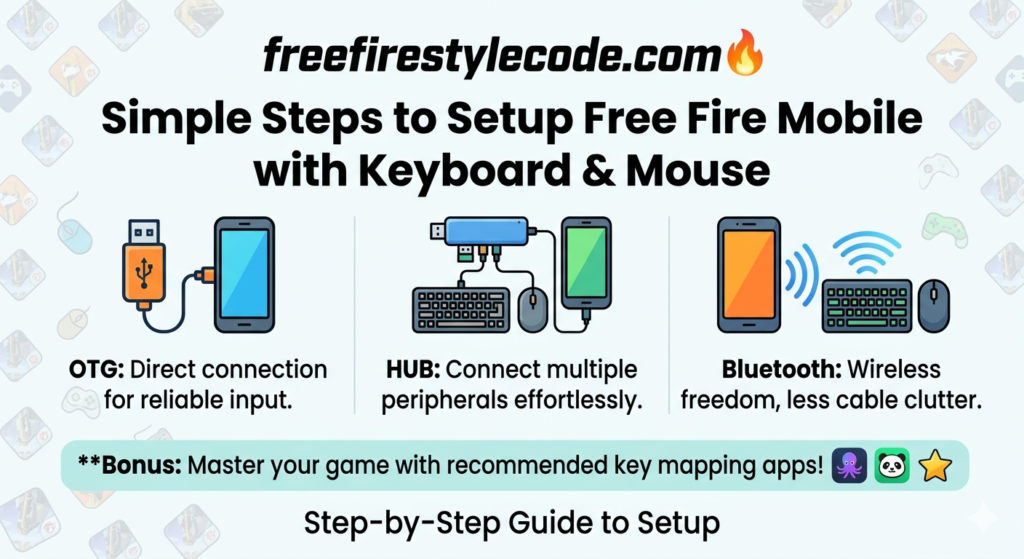
You need to decide your setup first, and once it is connected, you should see a cursor on your screen for the mouse, which means it’s working.
Wired (OTG):
Plug the OTG cable into your phone, then connect your mouse and keyboard, and it starts working instantly. Another wired connection is done by using a hub or receiver for the best gaming experience.
Wireless (Bluetooth):
Go to your phone’s Settings → turn Bluetooth on, pair both devices, and start playing the game.
Step 2: Install a Key Mapping App
You will need a key mapping app because Garena Free Fire doesn’t fully support keyboard controls by default.
For this, you need to download a trusted and Genuine key mapping app from the Play Store and grant the required permissions, then open Free Fire through the app if required. This step is what makes your keyboard and mouse actually usable in-game for a better gaming experience.
Step 3: Configure Controls for Free Fire
Now comes the most important part, which is setting up your controls. Simply drag and assign keys to match on-screen buttons.
Basic key setup idea:
Use- W, A, S, D → for Movement
Use Mouse Left Click → for Fire
Use Right Click → for Aim
Use Spacebar → for Jump
Use Shift → for Sprint
Step 4: Adjust Sensitivity and Settings
This helps you get better aim and faster response. If you want to get smooth gameplay, set these settings:
Firstly, increase or decrease mouse sensitivity based on comfort, then adjust in-game sensitivity settings, and reduce graphics if your phone lags.
Step 5: Test and Optimize
It will take you a few rounds to get used to the setup. It may feel different at first, but with time, it improves quickly.
Just go into training mode or a casual game and see if all the keys are working properly or not. If something seems off or is not working, then make changes to the controls.
Best Settings for Smooth Gameplay
Your settings are very important if you want to have the best gaming experience in Garena Free Fire with a mouse and keyboard. For that, you need to know the correct settings.
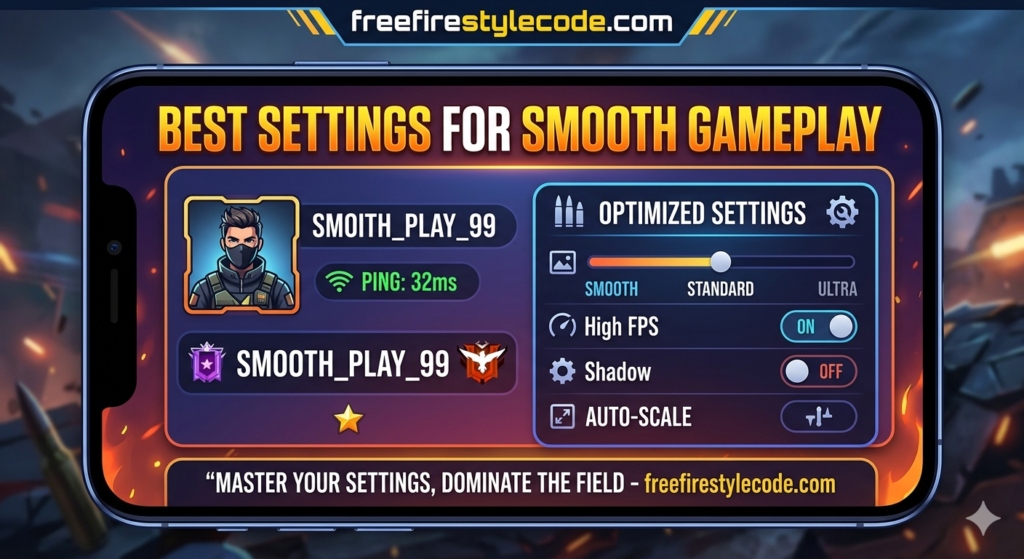
Firstly, you need to keep your mouse sensitivity balanced; it should not be too high or too low because you can aim accurately without losing control while moving quickly if your sensitivity is medium
Secondly, try to keep the DPI settings between 800 and 1600 only if your mouse can handle it.
Next is key bindings. Don’t make your layout complicated. Use easy-to-reach keys like W, A, S, and D for movement.
You should change the sensitivity settings in the game as well. To make aiming smoother, raise the general and red dot sensitivity a little, but keep the sniper sensitivity low for better accuracy.
Finally, make sure your phone’s performance is stable & optimized. If you dont want lag during fights, close any apps that are running in the background, and lower the graphics if needed.
Read More: How to Customize Controls Like a Pro Player
Conclusion:
Now you already know that it is possible to play Free Fire on your phone with a mouse and keyboard, and by doing so, you can increase your controls and accuracy in the game. Then what are you waiting for now?
Just by doing the required settings and using methods like OTG, Hub, or Bluetooth connections along with the key mapping apps, your gaming experience will be enhanced to a great extent, and feel a lot like PC gaming.
Just remember to keep your setup simple by using safe tools and practice a lot to get the best results. Now it’s your turn! Set up your controls and start winning your next game!
Read More Blogs Like This On FreeFireStyleCode. Also Join WhatsApps Group For More Updates.